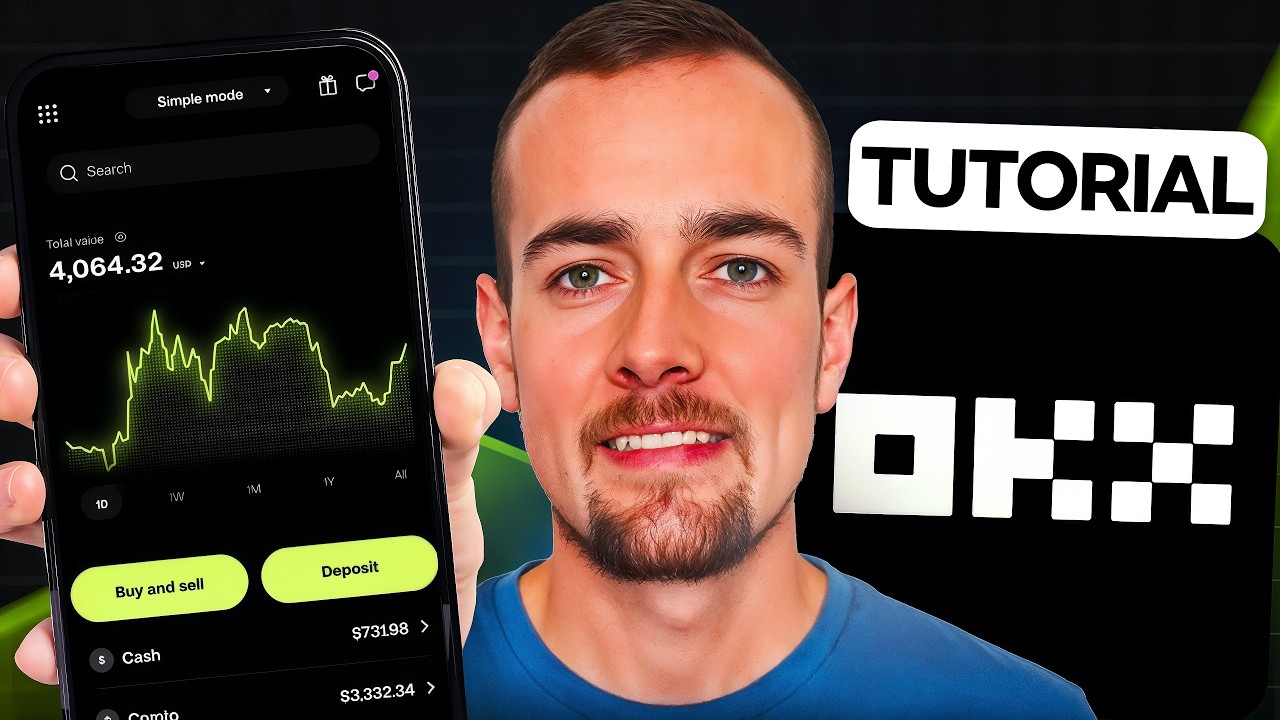
OKX Tutorial For Beginners In 2026 (How To Trade)

- Video return
- -0.12%
- Calls
- 1
- Buy / Sell
- 1 0
- Published
Recommendations
Entry is the asset's closing price on the publication date. Current is the last close on record.
-
Entry $63,956.00 10 Aug 2026Current $63,881.00 11 Aug 2026Result −$75.00
we're just going to keep it simple here and make an investment into Bitcoin.
Context “So, we're just going to keep it simple here and make an investment into Bitcoin.”
Full Transcript
If you're looking for the ultimate beginner's tutorial for OKX, this is the video for you. We'll be covering how to set up your account, make your first deposit, score a bonus up to $500, and start trading with ease. [music] Now, if you have never heard of OKX before or have limited knowledge, here's what you need to know. More than 120 million people worldwide are already using it, and the platform moves $2 billion in trading volume every single day. And in the US alone, you get access to 280 supported assets with some of the lowest fees of any centralized exchange out there. Now, I've personally been talking about crypto exchanges and investing apps here on YouTube and on my blog, investingssimple.com, for close to a decade now, and I'm going to be sharing all of that experience here with you. All that I ask in return is that you drop a like on this video and hit the subscribe button for me. Let's get started with how to open up an account. And guys, there's going to be a table of contents down below if you want to skip ahead at any point in time. The first step is going to be clicking the top link in the description below or visiting ryanoscribner.com/kx. They've partnered with my channel to offer you guys a crypto bonus and you can get up to $500 in Bitcoin when you open up a new account with my link and complete various tasks. To get the bonus, you need to sign up through their website with my link, and this will add the referral code Ryan Scriber. If you sign up on mobile, make sure you add the code manually. So, with that said, let's go through the sign up steps together. Okay, guys. So, after clicking on the link down below, you'll be brought over to this page here where you can see referral code Ryan Scribner is activated with up to $500 in rewards. So, we know that the bonus is in fact active. And we can then click here on the green create account button. At this point, you have to choose your country and then your state of residence. Check this box and then click on next. Once you click on the next button, it's going to bring you over to this page where you can enter your email and then the referral code is already applied. We can see the check box here indicating that or you can continue with a different account that you might have already if you choose. Next, you're going to click on the sign up button. After that, you're going to check the box saying that you are not a robot. And then you're going to have to enter the six-digit code that was sent to your email. At this point, once we have verified that code, you're just going to enter your phone number and then click on the verify now button as well. And just like before, it's going to send a two-factor code for you to confirm. And now you just have to create a password and make sure it meets the below requirements. And then we'll click on the confirm button together. So just like that, we have created a basic account here. And we can now switch over to the app. So, what we're going to do is actually scan this QR code with our phones, or you can just visit the app store, download the OKX app, and then we will go step by step through the process together. All right, guys. So, after we scan the link here on the website, it's going to bring us over to the download page. I'm just going to click here on the get button, and it's going to go ahead and install this app for us, and then we'll open it up together. Once it's downloaded, we'll click here on the open button. That's going to bring us over to the OKX app. And then we can go ahead and make a decision here about tracking and notifications. And then we're going to click here on the green login button since we've already created a basic account. So I will click on that and we're going to enter either the phone number or the email that you use during the sign up process. Once you confirm your password, we're going to click on the green login button and then you will have to verify a two-factor authentication code. And then you can make a decision here about whether or not you want to add pass keys to enhance your account security. I'm just going to skip over this for now, but you can keep that in mind for the future. And then I'm going to click on setup later for the uh pass key. So just like that, we have now linked our app account to the profile we made online. Now we want to click on the get verified button here to verify the account. It's also going to allow us to score the first Bitcoin bonus. And just to cover the steps here involved with the $500 Bitcoin bonus. If we click here in the top right, it's going to bring us over to this featured section where you have a 7-day counter. We're going to click on earn $500 now. And these are the different steps required. So, right off the bat, you'll get $10 in Bitcoin when you complete your identity verification. And then you're going to get $40 in Bitcoin when you deposit $100 or more worth of cash or crypto. And then there are some additional um tiers that you can unlock based on different activities. For most people, the top two are going to be easy ones you can knock out immediately. And then if you grow your account to $1,000 or more, and then $10,000 or more, you can unlock different tiers here for the additional free Bitcoin. And keep in mind, guys, these promotions can change from time to time, but these are the current details as of this recording here in the month of August. So, we're going to complete the first one and we're going to click back once again and then click on the get verified button. So, then we're going to click here on the verify now button at the bottom. And then it asks, do you do reside in a US state? That's going to be yes, I do. And then you can enter now the last four of your social security number. And this is protected. It mentions that at the bottom. And these KYC steps are going to be required for pretty much any financial account you are opening up today. So, this is very common to have these questions asked. After that, we're going to click here on the next button. It says retrieving your profile. And then at this point, you can verify information here on screen. If everything is correct, you can click on the confirm button. And then it says what is your nationality. You can enter the country and then click on next. And then it asks about what industry you work in. So, go ahead and fill this out accordingly. Next, it's going to ask what ID you will be using. So, you will have to take a picture of the front and back of your ID. For me, it's going to be a driver's license. So, I will select that. And then this mentions the biometric data disclosure. You can read this over and agree if you do in fact agree. And now, we have to scan our ID. So, I'll go ahead and complete those steps. So, just like that, the front of my ID was captured. I'm going to click on submit photo. And then you have to do the same thing for the back of your ID as well. And then we're going to click on the submit photo button at the bottom. And now we have to take a video selfie. And they're basically just going to use this to make sure it matches the photo on the ID. So I'll click on the next button. And now we can see my face in the window. Uh move closer. So we'll make sure that this matches what it's looking for. And just like that, our account has been verified and we just have to certify our tax details now to begin trading. Okay guys, so now we have officially verified our account. And the first thing you're probably wondering about is your free Bitcoin bonus. If you click over here on activity, you should see that showing up here where you earned this Bitcoin reward for completing the verification steps. Now, the cool thing about this is you can actually use this Bitcoin to trade right away if you don't want to then complete any additional steps. So, if you wanted to take your Bitcoin reward and then swap it into a different supported token, you can do that immediately. Or you can take the additional steps here to fund the account with a bank or different type of crypto exchange, earn the additional Bitcoin and then use that amount of money to place your first trade. So if I click here on the trade button at this point in time and then select convert, we could actually use our Bitcoin balance. So I can select here where it says zero available. We have 998 available in Bitcoin. So just to demonstrate this here guys, we're going to swap this over to Ethereum. If I select this from the menu here, we can see Ethereum is listed. I will select that. And then you can either do it based on a percentage like 50%. Or you could do the maximum amount if you wish, which I'm actually going to go back and choose max for this. So that's going to convert all of our Bitcoin here over to Ethereum. I'm going to click on the preview button. And then if this looks good, we'll click here on convert. And then just like that, it has completed. We have swapped our referral Bitcoin over into Ethereum at this point. And I'll just now click here on the done button. And we can see that listed here in the activity section. And if I go over to my portfolio, we can see my Ethereum listed here under cryptocurrencies. So, what I want to do now before I fund the account is just give you a quick tour of the overall app. We'll start here on the main screen. So, at the top here is going to be a search bar where you can basically type in anything that you might be looking for. Let's say, for example, you're looking for Bitcoin. You would just type in the symbol and you can select that from the top and you can get a chart here of the current activity insights buying activity and different details like that. You'd also be able to track your balance here as well if you own the crypto. We're going to click on back and click on the X. You can also explore from this page and just see what's trending, what's new, top gainers, top losers, and different lists like that that you might want to be aware of. Uh, we'll go back for now and then we're going to click here on cancel to navigate back to the homepage. Now, at the very top, you can see where it says simple. We're actually in the simplified version of the app, which is what we're going to focus on for this video since most beginners are going to be looking for that. But if you're looking for the more advanced side of OKX, you can toggle over to exchange. And this is going to be the advanced order features and price charting and things like that. So, if I now click on Bitcoin, we're going to get an advanced chart here. So, if you are looking for advanced data for your cryptocurrency trading, it is available here. It's also available through their website, but like I said, we're going to focus on the beginner side. So, I'm just going to toggle this back over here to simple for the rest of what we are covering. Below this, you're going to see your portfolio value. You can see how it breaks down between cash and crypto. Right now, it's exclusively crypto. There is going to be your watch list. below that. And if you want to add something to your watch list, you would just search for it and click on the little star icon and it will add that here. You can then get market insights as far as um the total market cap volume and Bitcoin's current dominance in the market. Market events are going to talk about any major catalysts here coming up that could affect crypto markets. And then the new onx section is just going to show newly listed tokens. We then have the option to transfer or trade, but we're going to revisit that shortly. Clicking over to portfolio, we're going to see our portfolio, which we looked at this um earlier. If you click on a particular asset, it's going to bring you to the page where you can view your balance and view insights related to this particular token. And then the explore page is going to be basically very similar to what happens when you click on the search bar. You're just going to see different assets, new onx, what's being searched for, categories like memecoins, defy, etc. And then earning opportunities. We'll talk about that in a little bit here. Activity here is going to show past trading activity. You can also set up a trading bot, set up recurring buys, uh trigger orders if you want to do something more similar to a limit order where there's actually a price event or something triggering it. And then the pay section here allows you to send crypto instantly to anyone. So, if you wanted to use this uh to basically send money to somebody who has an account, you can do that very easily through the OKX app. So now what I want to talk about is their onchain earn feature which is a way that you can earn a yield on different cryptocurrencies that you hold. And you can find that by clicking on the explore page here, clicking on the top left button there. And then under the gifts and rewards section, it says earn. So we'll go ahead and click on that. And this is going to bring us to that particular section of the app where you can see all offers. And we'll just talk about this very briefly here just so you're aware of it. For starters, USDG and RLUSD that are held on OKX will earn you currently a 3.5% APY. We can see that listed here at the very top. And this is a pretty big deal here because most other competitors are going to make you pay a subscription fee or membership fee of some kind in order to earn a yield on a stable coin or something like that. In this case, you don't have to and you can earn that yield without paying a subscription. So, you might consider that. Now, in addition to that, there's going to be other onchain earn opportunities we can see listed below that. I'm going to click on view all to get a full list. Now, I did want to mention that this is not going to be available in all US states and territories. There are going to be uh state exclusions and deposit limits that apply. This list is subject to change, but currently onchain earn is not available in California, Maryland, New Jersey, or Wisconsin, but you can earn some solid yields here on tokens. And these tokens do have certain holding periods in certain cases. So it's not the same as um the RLUSD and USDG where you do not have specific holding periods or lockups. So you do want to understand the differences and nuances between these before committing your crypto to these. So if I click on one of these, for example, we're just going to click on Cosmos since it's the highest APY. It is not a recommendation or anything like that, but it mentions here that you need one atom to meet the minimum deposit requirement. And what you will find here is that the caps to earn the yield are typically quite small. So you don't need to have a ton of these different tokens in most cases to actually participate in the onchain earn feature. The next thing I want to cover while we're in this section is the X drops. That's also going to be under the earn section, the XROPS club. If I click on that here, it's going to give us more details. So you do need to have a $2,000 portfolio in order to join, but then you can join this and we'll talk about what this is able to get you. So, the Xdrops club is going to have two main ways that it works. It's going to be a trade to earn and then a hold to earn opportunity. Let's talk about both really quick here. Trade to earn is exactly what it sounds like. You're going to opt in, trade, and then earn more share of the reward pool over time while the period is live. And then the hold to earn is going to be more passive. You opt in and then any crypto that you hold earns you a slice of the reward pool or token. And the more you deposit, the larger your share. Once again, guys, you'll have to look into this more on your own and do research on it, but it could be something you're interested in to potentially earn reward cryptocurrencies. Now, the current drops here have ended, but in the month of July, they had three of them here, and we can click on the arrow here that says explore more drops. We'll just view one that ended here on July 29th at the very top. And this was a reward drop here for CFG. So, this is an opportunity here you might explore on your own and there will be more of these in the future that you could participate in if you meet the requirements. And one more thing I want to share here is if you are a VIP member, you will get a boost on rewards. We'll talk about the VIP program shortly. Uh so, basically something you might want to consider if you're looking to expand your crypto portfolio. And then another feature people are often interested in is going to be the trading bots. If we click over here on activity, we can see where you can set up a trading bot. I'm just going to click on that and talk about what this is. So, this has a couple of different strategies by default. One of them is saying grow my portfolio over time. This is basically setting up a recurring buy. So, you're automatically buying crypto on a set schedule. Next is their smart DCA. Smart dollar cost averaging. This uses a dollar cost averaging to buy more when the price drops and then sells when it recovers. So, if you wanted to automate a DCA strategy, you have the option for that. and then profiting from price swings using a grid strategy. This buys and sells every time the price moves between different levels. We're not going to get into this right now because it's a bit above and beyond the scope of this video, but it is a popular feature. Something again you'd want to look into on your own and make sure you understand the risks and upside involved here. Uh but if you want to automate your portfolio, these trading bots can be very helpful for that. And then before we get into funding the account and placing a trade here, let's just talk quickly about their VIP program. If we click on the dots once again, you can see where it says unlock OKXVIP. We'll just click on this for more details. With OKXVIP, you can qualify immediately when your assets reach a certain level or you hit a certain level of trading volume. If we scroll to the bottom, we can see it would require $100,000 of holdings. So quite a bit of money, but there are benefits to be aware of if this is something that you were interested in. Benefits include boosted APY on USDG and RLUSD held within OKX as well as USD held through the pay balance. You can also earn boosted rewards and share of airdrops through the X drops. And there's also lower fees on VIP tier. So just something to be aware of if you become a mega holder here through OKX. So now let's go ahead and cover how to deposit funds into OKX. And you have two options here. You can either link your bank or you can take cryptocurrency holdings from a separate exchange and send it over. It's actually going to be quicker to send over from a crypto exchange. So, that's what I would personally recommend if you have a different um exchange with funds you want to move over and you are familiar with the steps, but we'll talk about both options here just so you are familiar. If I click on the transfer button and then deposit, you can choose between US dollar or different cryptocurrencies. We're just going to select US dollar for now. And this is going to prompt us to complete the IRS certification. So we're going to go to the support center and follow those steps now. Okay guys, so here we are now back on the desktop platform because we have to complete the tax certification. And to my knowledge, this is the only way to do that is from this view. So from the main page here, we're actually going to click here on verification. And then it says action required complete tax certification. So I'm going to go ahead and click on the start now button. And then it just mentions that they're required to collect certain information for the IRS. So, we're just going to click on certify. Now, at this point, it populates all of your information from before. And if this looks good, you can scroll down to the very bottom. And then, if you're all set here, you can click on the black submit button. It now says reviewing your info. This will take just a moment. And then you're all set. So, now we have officially verified our tax information. and we can now link a bank account or we can go ahead and make a crypto deposit to the OKX account. So now we'll hop back into the app and show you those steps. All righty, guys. So, back over in my app, we're going to click on the transfer button once again. We're going to click on deposit cash or crypto. And then we're going to select US dollar from the very top. And this time, it gives us different options here for depositing since we are officially verified. So, with a bank transfer, it's going to be instant and no fee with a $5,000 limit per day. The debit card has a 2.49% fee. So, I wouldn't recommend that even though it is instant, and there's a $1,000 limit. And then there's no fee wire transfers available, which can take up to three business days, but has a $500,000 limit. So, depending on how much you're looking to trade, uh these are the different options available for bank transfer a. We're going to click on the next button. And then you can go ahead and decide if you're looking to deposit to USDG to earn that APY automatically or USD balance. I'm going to leave it as USD balance since we're going to trade it immediately. And then you have to click here on the from section. And this is where you would add a bank account. And you're going to do so with a Plaid account. With this, it's either going to confirm your phone number and a two-factor code if you've already done it before. If not, you can just enter your bank login information and then it's going to bring you through those steps. Now, I'm not going to go through with this because I'm just going to use some US dollar coin I already have on Coinbase and move it over to OKX because it's going to be quicker. Um, but I did want to explain the steps involved here with linking a bank account. That way, if you want to deposit from a bank or move money back to your bank account later, those would be the steps. And you would just do this here with Plaid in this section. But we're going to click back. Click back once again a few times in the corner. And we're actually going to deposit USDC. And by selecting that, we can now choose the network we're looking to move it over from. Uh I believe it's going to be ERC20, but let me hop over into my Coinbase app and we'll do it together just so you're familiar with the steps involved. So over here on Coinbase, we're taking a look now at my USDC balance of 15051. We're going to click on the transfer button, and we're looking to send crypto. And then at this point, I can't actually capture the screen for security reasons. At this point, I can record the screen once again. So, it shows that we have sent 102 US dollar coin. It did say it could take 30 minutes to come over. So, we might need to wait a little bit, but I'll keep you posted on how long that takes. So, now under the activity section about a minute later, we can see a pending order, a USDC deposit. So, we have confirmation that it's coming over. Uh, so it should just take a few more minutes at this point for that to clear and then we will have our USDC deposit completed. and we'll be ready to actually trade with it. All right, guys. So, just like that, we have received our US dollar coin. It did take about 7 minutes. So, the estimate there was correct. If I navigate back here to the homepage, we can see our estimated value is $111.90 in the breakdown between cash and crypto. And then we should get the additional $40 Bitcoin welcome bonus as well. But for now, what I want to show you is how to actually invest with this US dollar coin. So for that, we're going to click here on the trade button at the bottom right. And now we are looking to buy crypto with cash or stable coins. So we'll click on that. And then this is going to be all of the different cryptocurrencies that are supported through the app. As we said, there was over 280 of them. So quite a few to choose from. But we're just going to keep it simple here and make an investment into Bitcoin. So that's listed here at the very top. And at this point, we could enter the amount that we're looking to buy. So, for example, if we're looking to purchase $100 worth of uh Bitcoin, we would type in that here. And then under the pay with section, we're actually going to choose our stable coin balance, which is currently 102 available. So, that did come over. And we can select that as our option to pay with. And then we'll click on the preview button from here. And on this screen, it mentions at the bottom that there is a 7% spread plus no fee. If you are familiar with other crypto exchanges, that is a much lower fee than many of the others out there. So that's one of the perks here mentioned earlier with OKX. And then if you want to earn the APY on it, you can toggle that on or you can leave it off. I'm just going to leave it off for now for simplicity. And then we're going to click on buy BTC. And then just like that, we invested in Bitcoin with the money that we had transferred over from my crypto wallet. And then we'll click here on the done button. And then navigate back here to the OKX tab. once again. So now we have $2 in cash, 109 in crypto. And the only other thing I want to show you here since we've covered how to buy and how to convert is now how to sell cryptocurrency. So we'll click into the crypto section and we're actually going to sell off this Ethereum just to demonstrate how that would work. So we're going to click on that under our crypto balance. We're going to click on the trade button here. And now we're going to click on sell. And then we're going to on this screen enter the amount we're looking to sell and where we're looking to receive it to. I'm going to do a maximum. But first I want to talk about the receiving because there are some different options here. If I click on that, there's a USD balance and then there's stable coin balances. So if you're looking to bring this money back over to your bank account that's linked with OKX, you're going to want USD balance. That way you can transfer it. But if you're just looking to keep your money on the sidelines and want to earn that yield, you could choose USDG and get that 3.5% APY, I'm going to choose that in this case just for demonstration purposes. And then we're going to click on max and sell all of this. We'll click on preview at this point. And then it mentions the spread and no fee at the bottom here as well. And then we're going to click on the sell ETH button at the bottom. And just like that, we sold off the Ethereum and now have 9.85 in USDG. So, I'll click here on done and then navigate back over here on the left. And now we have our cash listed and our cryptocurrency listed. Now, I didn't link a bank, so I won't be able to transfer the money to the bank account. But if you are looking to withdraw to your bank, you would either transfer it under this section here where you would need to have a USD balance. So, you could convert your stable coin balance to USD, or you could send this back over to a different exchange linked to a bank account if you wanted to cash out that way. But those are the steps involved here with buying and selling and all of the different steps you might need in the OKX app as a complete beginner. But there you have it, guys. That's a full tutorial on how to use OKX for beginners. I hope this helped you with getting started. And if you have any questions, leave me a comment down below and I'll do my best to answer each one. Lastly, don't forget to use my link down below or referral code Ryan Scribner to get that welcome bonus of up to $500 in Bitcoin depending on which tasks you are able to complete. You can click here to watch this next video. I think you'll enjoy and I'll see you next time.
Comments 0
Sign in to join the discussion.
Sign inNo comments yet. Be the first to share your thoughts!